

Have you been thinking about using the Elementor page builder plugin on your WordPress website?
Did you know that you can save lots of time building your WordPress website using this plugin?
Read on to find out my 3 top time saving tips for using Elementor with WordPress.
This post contains affiliate links. If you buy through these links I will get a small commission at no extra cost to you. I only recommend products that I use and love or products that I want to try.
Estimated reading time: 5 minutes
What is Elementor?
Elementor is a drag and drop page builder plugin for WordPress. It has an array of different elements that you can use to build web pages on your website. From the basic headings, paragraphs and images to shop products and FAQ sections Elementor has it all.
It’s an easy way to build a professional looking website for anyone, including professionals and those who don’t have any web design or coding skills.
Free vs Pro
There are 2 versions of Elementor. The free version and pro which is the paid for version. The main difference between the 2 versions is the number of elements available for you to add to your page.
In my view most people will be perfectly happy with the free version. I built each template in my template shop using the free version of the plugin.
Setting brand colours
Within Elementor you can set global site colours. Once you’ve set them, you’ll be able to access them in a popup anywhere on the site where you can change the colours.
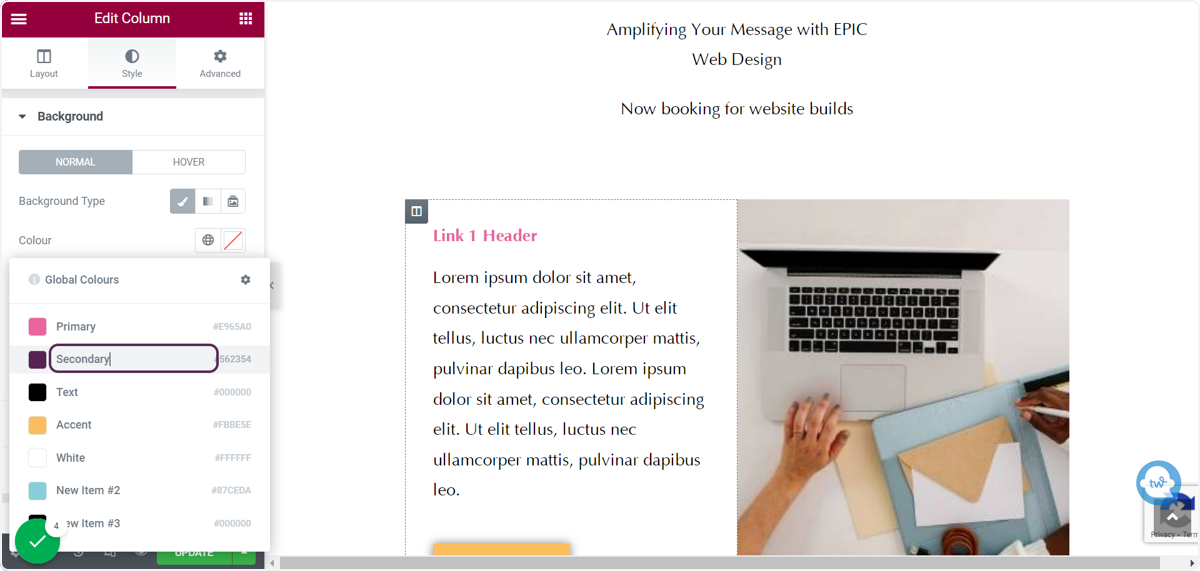
This is the biggest way to save time when using Elementor with WordPress. It saves me hours every time I work on an Elementor website, because I don’t have to keep checking the colour codes and then typing them in.
An additional benefit to setting and using these colours is that if later on you change your brand colours, you can update them here and they’ll automatically update throughout your site.
You’ll need to tweak the odd page here and there but you won’t have to go through the entire site to change every single colour.
Setting font styles
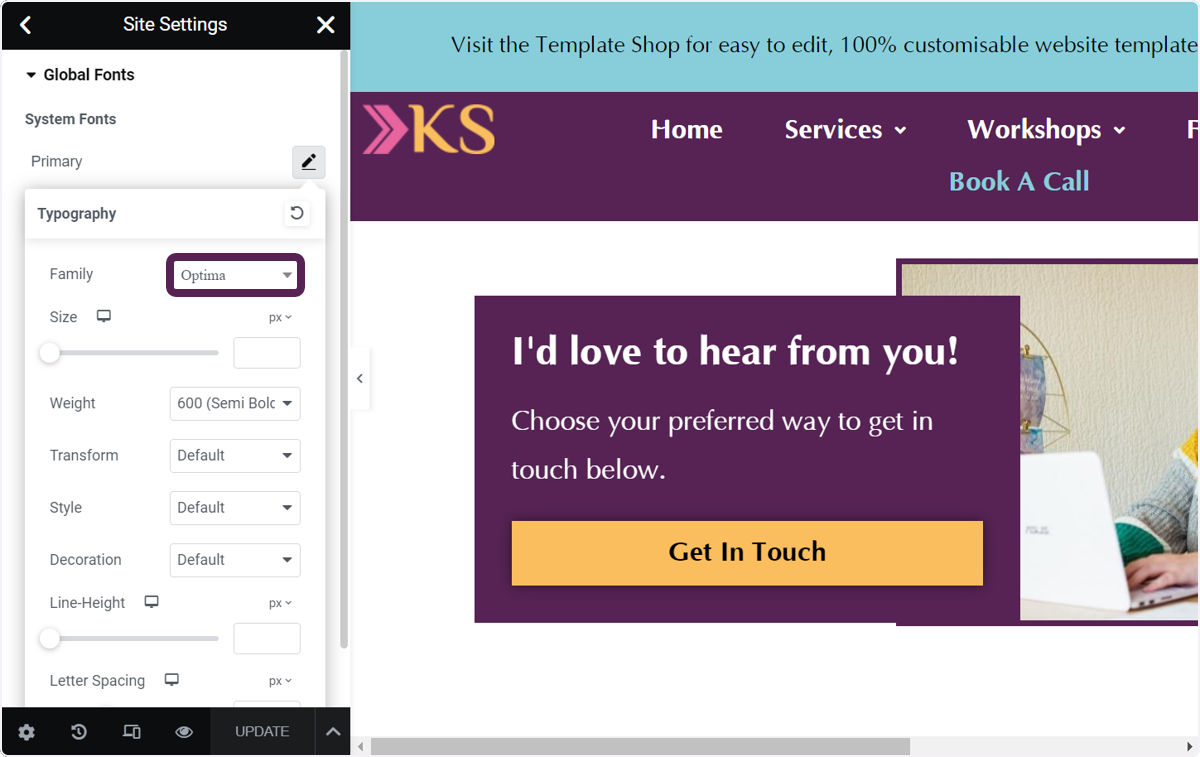
You can also set global font styles. You can set them for each heading level and for body text. Once they’ve been set, anytime you add an element that includes text to the page, they will automatically use the font style you set.
It’s not as big a timesaver as setting colours because the names of fonts are generally quite easy to remember and you should only have 1 or 2. But it will still save you several clicks every time you add a text element to the page.
And as a small business owner, I know that every second counts.
Using Templates
Elementor has a library of layout templates that you can use on your website. You’ll find some basic ones if you use the free version of the plugin, and a more extensive library if you pay for Elementor Pro.
Regardless of whether you pay for Elementor or not you can also find low cost templates to buy and then use on your site.
If you’re a small business owner using Elementor with WordPress and aren’t technically savvy or you don’t have an eye for web design, templates can be a huge timesaver in your business.
This is because:
- you won’t spend hours agonising on page layouts
- templates are usually designed by web design professionals who know how to design websites that convert visitors into clients
- a good template creator will provide you with support and information on how to use your template, so you know exactly what to do to get your new site up and running quickly and easily
3 awesome time saving tips for using Elementor with WordPress: summary
- Elementor is a drag and drop page builder plugin for WordPress. It lets you create professional looking websites without writing a single line of code.
- There are 2 versions of the Elementor plugin, a free version and a paid for version. The main difference is that there are more elements to choose from when building your website on the paid version.
- Setting brand colours – this is the biggest time saver when using Elementor. Once you’ve set your colours you’ll be able to choose them from a popup anywhere you can change a colour.
- Setting brand fonts – once you’ve set them they’ll automatically be used by any element you add to a page that contains text.
- Templates – if you’re not tech savvy or not confident in your design skills, a template is a great option to help you launch a website that sells, and get it up and running quickly and easily.
You may also enjoy
How to create a website with Elementor
How to install Elementor templates in 3 really simple steps
4 top reasons to choose website design templates for your business
How to grow your email list with MailerLite & Elementor

