
To build a WordPress website with Elementor, you need three things in place first: a domain name, hosting and WordPress itself. Then you install the free Elementor plugin, set your brand colours and fonts in its global settings, and build each page by dragging elements into sections, or starting from a ready-made template. A final round of checks, and you’re ready to launch.
This guide walks you through the whole process step by step, from the perspective of small business owners who’d rather do it themselves. You won’t need to write a single line of code.
Estimated reading time: 7 minutes
What is Elementor?
Elementor is a drag and drop page builder plugin for WordPress. It lets you build clean, professional looking web pages by dragging elements onto the screen, with no web design or coding knowledge needed.
It has an element for just about everything: headings, paragraphs and images, but also buttons, videos, shop products, FAQ sections and more. If you can picture it on your page, there’s probably an element for it.
Elementor Free vs Elementor Pro
There are two versions of Elementor: Free and Pro. The Free version has everything most people need to build a full website. The Pro version adds extra elements, including some WooCommerce ones, and is worth considering if you’re planning to add a shop to your site.
My advice is to start small. Begin with the free version, get comfortable, and upgrade later only if you find you actually need to. I build most of my clients’ sites with the free version, and every template in my template shop uses it too. You can absolutely build a professional website without paying a penny for the plugin.
What you need before you build
Before Elementor enters the picture, you need three foundations in place: a domain name, hosting and WordPress.
- A domain name is your website’s address, like kimscotland.com. If you’d like the full story on how they work, read my post on domain name servers.
- Hosting is where your website’s files live. Buy the best you can afford: a good host makes a real difference. I cover the options in my guide to the best WordPress hosting for beginners.
- WordPress itself installs in a few clicks with any good hosting provider, and the software is free.
Once those three are sorted, installing Elementor works like any other plugin: from your WordPress dashboard, go to Plugins, click Add New, search for Elementor, then Install and Activate.
Why build with WordPress and Elementor?
Your website is the one corner of the internet you actually own. Social media algorithms can change at the drop of a hat: one day a post gets a thousand views, the next day ten. A website you can optimise for search is a far steadier foundation for your business.
WordPress powers more than 40% of all websites (source: W3Techs), which means help, tutorials and freelancers with WordPress experience are always easy to find. With complete control over your content, it’s a brilliant platform for search engine optimisation. I go into much more depth in What is WordPress? Why use it for your business website?
Elementor adds the visual, drag and drop layer on top, so “easy to use” actually means easy to use.
Set up Elementor to save yourself hours
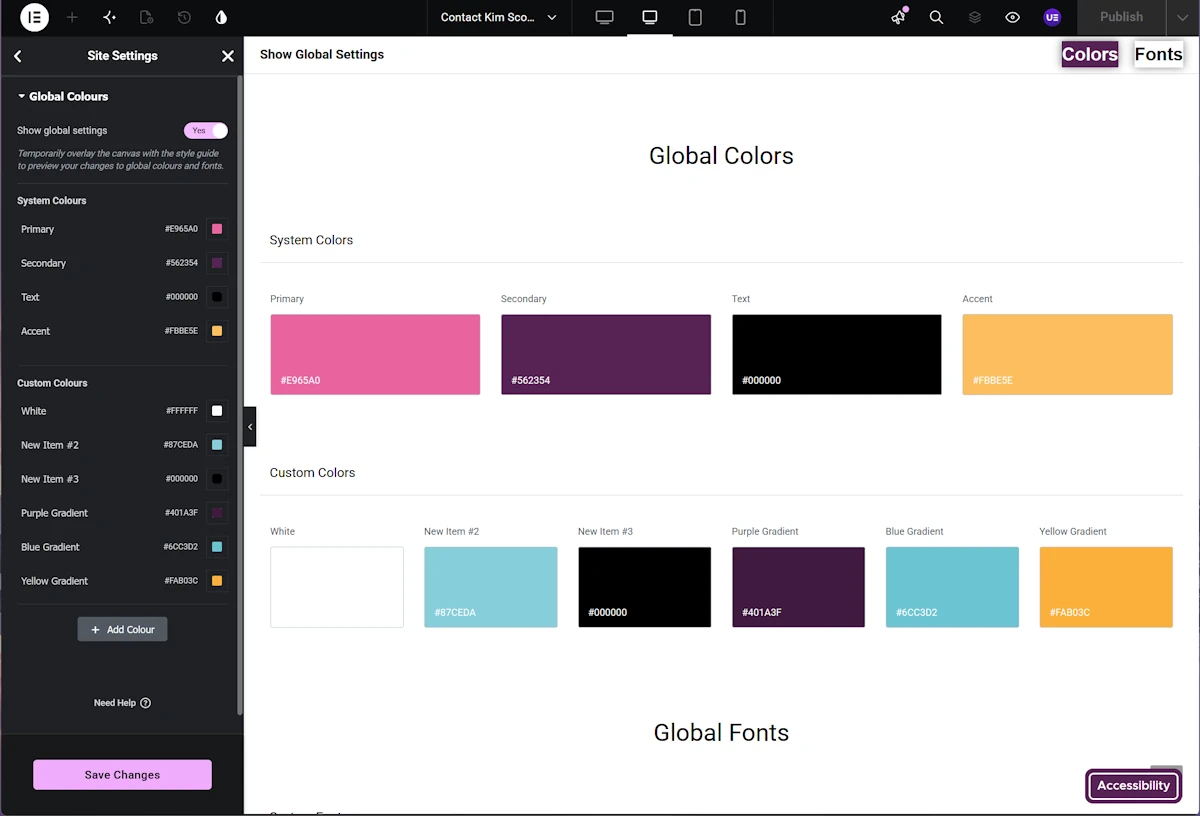
Before you design a single page, set your brand colours and fonts in Elementor’s global settings. It’s the single biggest time saver in the whole plugin.
Global colours
Once your brand colours are set globally, they appear in a handy popup anywhere you can change a colour. No more hunting down colour codes and typing them in over and over, for this saves me hours on every Elementor site I work on.
There’s a bonus, too. If you ever rebrand, update your colours once in the global settings and they’ll change across your whole site automatically. You may need to tweak the odd page, but you won’t be trawling through every single one.
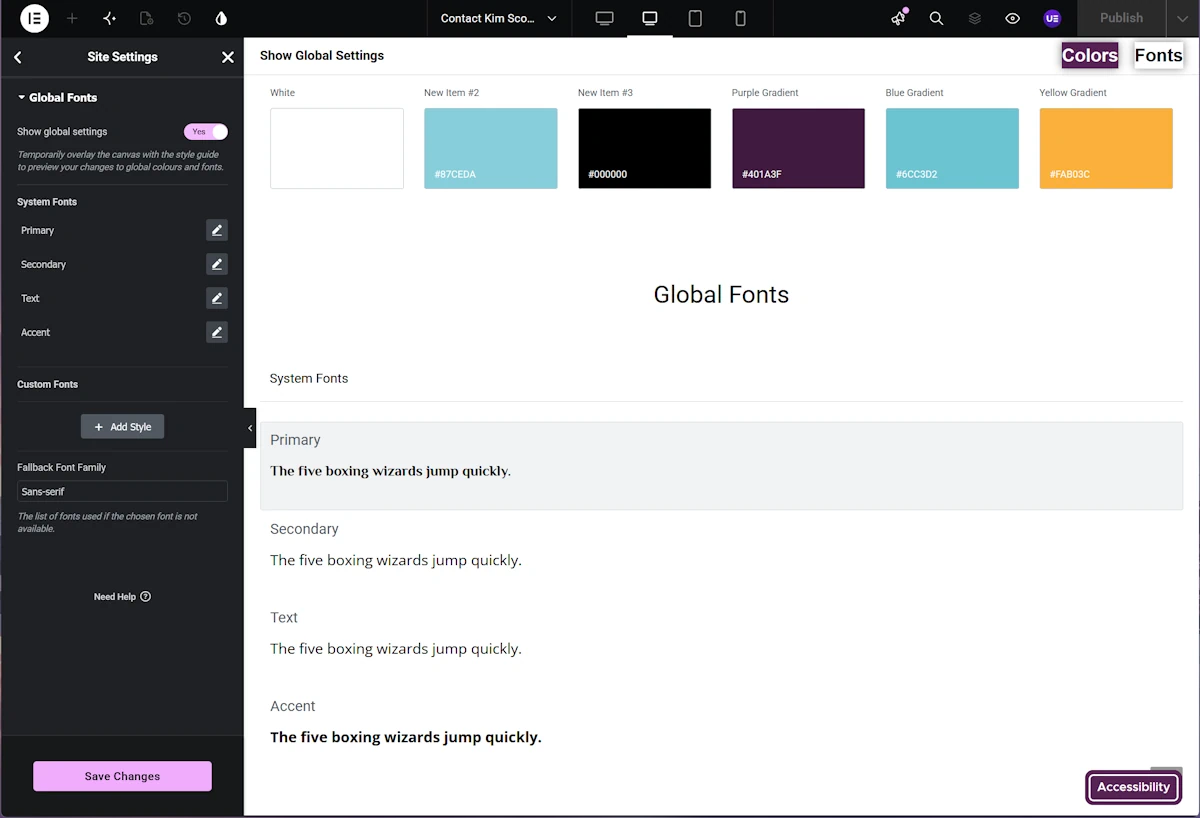
Global fonts
You can set global font styles for each heading level and for body text. Once they’re set, every new text element you add automatically uses them. It’s a smaller saving than colours, but still trims several clicks off every element, and as a small business owner I know every second counts. Here’s Elementor’s own tutorial on how to set global fonts and colours.
How to create a page in Elementor
Creating a page with Elementor is very similar to creating any other page with WordPress.
- Hover over Pages in your WordPress dashboard and click Add New.
- Give your page a title.
- Click Publish. Don’t worry, this won’t add the page to any of your menus.
- Click Edit with Elementor. This button appears on any page or post where Elementor can be used.
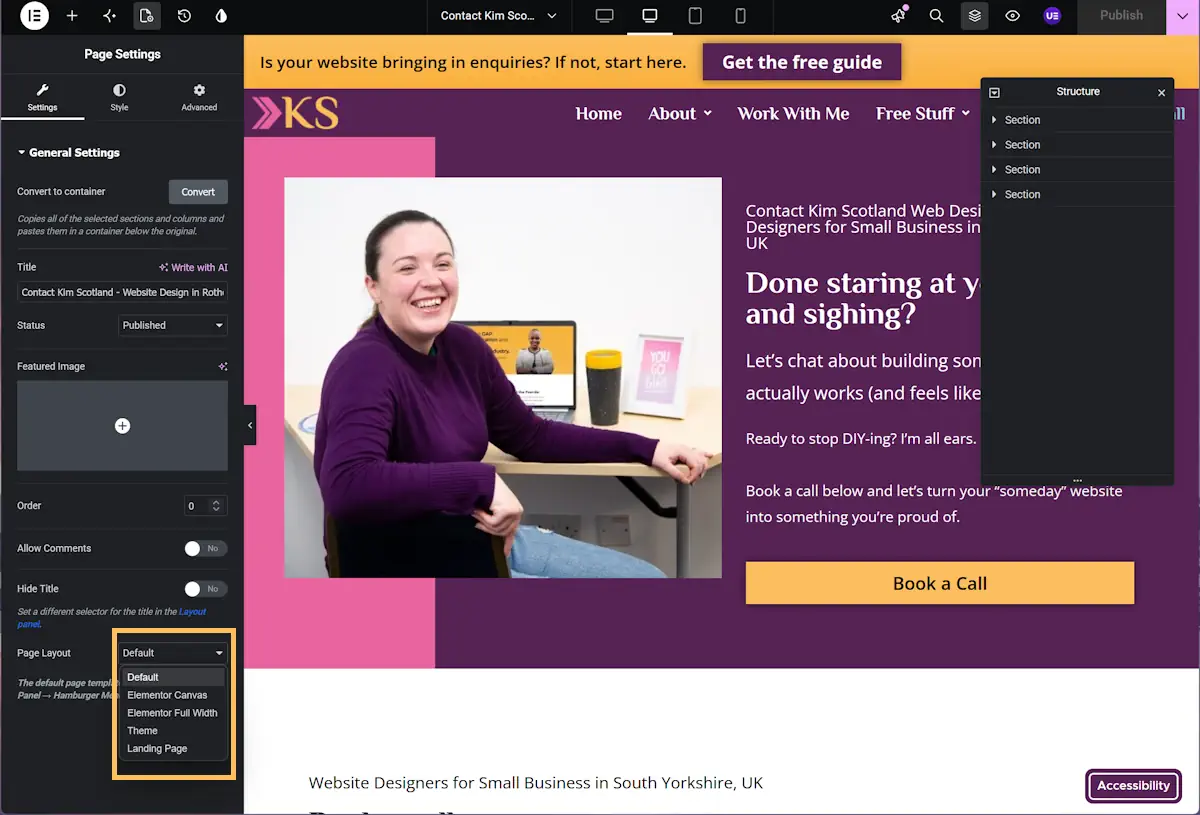
Choosing a page layout
Different pages need different layouts, and you choose them from the Template dropdown in the page settings. For general pages like your Home, About and Contact pages, I like Elementor Full-Width, because it lets the design use the full screen.
For landing pages and sales pages, choose Elementor Canvas instead. It hides your website’s header and footer so visitors stay focused on one goal. Just remember that your legal pages still need to be reachable from Canvas pages, so add those links to the page itself. I cover all of this in my guide on how to create a WordPress landing page.
This creates a page with no header and footer. For more info on creating landing pages with Elementor check out my blog post on how to create a landing page using Elementor .
Adding sections, columns and elements
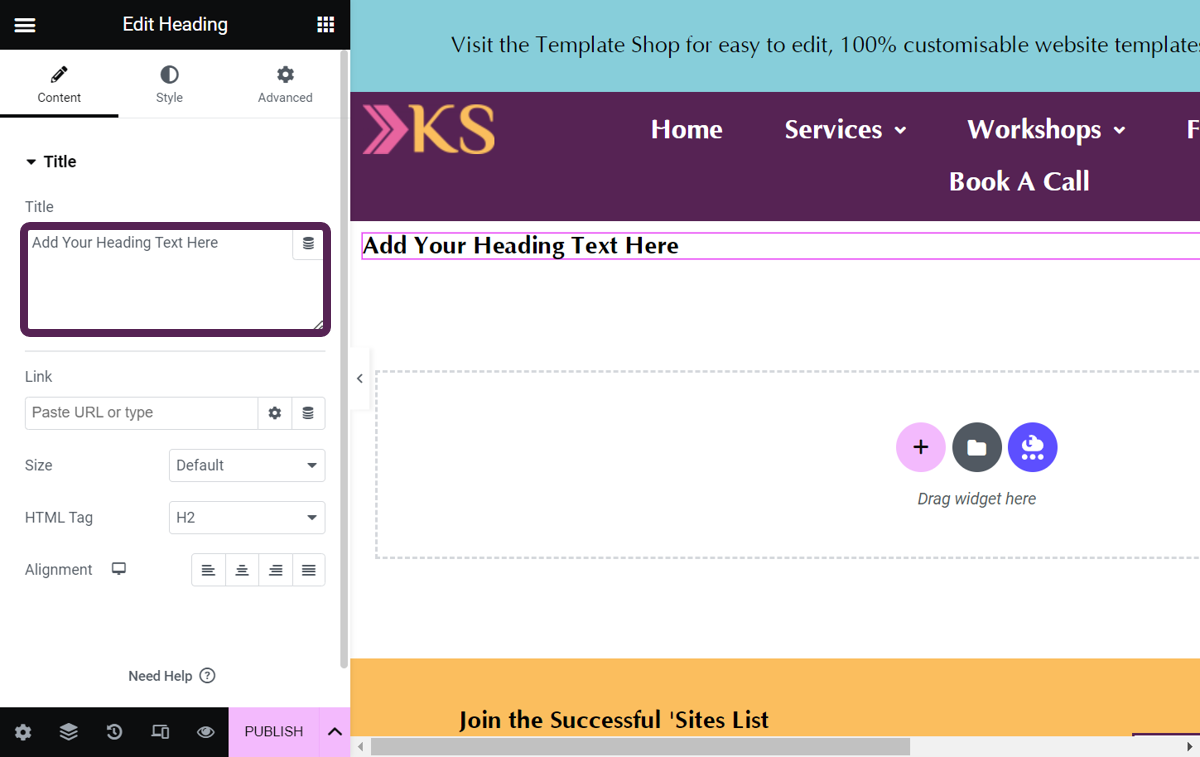
Every Elementor page is built from sections, which act as containers for one part of the screen. Add as many or as few as you like.
To build up your page:
- Click the + icon to add a section.
- Choose a column layout. Don’t worry if you need an extra column later; you can add more at any time without losing your changes.
- Drag elements from the left-hand panel onto your columns. You’ll find the basics like headings, images and body text, plus handy ones like buttons, videos and HTML code (really useful for adding email sign-up forms).
- Style each element using the settings that appear in the left panel when you add or select it.
Templates: the shortcut if design isn’t your thing
You don’t have to start from a blank page. Elementor includes a library of layout templates: a basic set in the free version and a bigger one in Pro. You can also buy low-cost templates from independent designers and make them your own with brand colours, fonts, images and words.
If you’re not technically savvy, or design just isn’t your strength, templates are a huge time saver because:
- you won’t spend hours agonising over page layouts
- they’re designed by professionals who know how to turn visitors into clients
- a good template creator gives you support and instructions, so you know exactly how to get your site up and running
I’ve written a separate step by step guide on how to install Elementor templates.
Which pages does your website need?
For most service-based businesses, five pages cover it: Home, About, Services, Contact and an email sign-up page. One golden rule before you build any of them: write your content first, then design around your words. It saves so much time. I occasionally break this rule on my own site and always regret it.
- Home: your introduction. What do you do, who do you do it for, and why are you the right person to help?
- About: your experience and expertise, always angled towards how it benefits your clients.
- Services: an overview page if you offer several services, plus a page per service with features, benefits, how the process works and clear pricing. No one likes prices hidden until the sales call.
- Contact: give people as many ways to reach you as you’re comfortable with, Embed your call scheduler if you do discovery calls.
- Email sign-up: promote your lead magnet here. If you don’t have an email list yet, I really recommend starting one: here’s how to create an email list quickly.
Wherever you talk about your services, sprinkle in social proof. Testimonials work hardest when they sit right next to the thing they’re praising.
Before you launch: the final checks
Once your pages are built, give everything a thorough once over before you tell the world. My pre-launch checklist:
- Click every single button and link to make sure it does what you intended.
- Check the site on a desktop, a laptop, a tablet and a phone.
- Ask a friend or family member who isn’t familiar with your business to look through it. Does it make sense? Can they find their way around?
- Sort the security basics: no account with the username “admin”, and strong passwords all round. My 5 really simple WordPress security tips will get you covered.
- Add a few well-chosen plugins to round things off; here are the 9 WordPress plugins I recommend for business websites.
- Cover the legal bits: a privacy policy and cookie notice so visitors know how their information is used.
One more thing worth baking in as you build rather than bolting on later: search engine optimisation. It’s much easier to get your keywords into your words, images and page titles while you’re designing than to retrofit them afterwards. My beginner’s guide to SEO is a good place to start.
Happy with everything? Publish your pages and start telling the world.
Ready to get your new website found?
Building your website is a brilliant first step; the next is helping the right people find it. My free How to Get Found Online guide shows you exactly how to help your ideal clients find you, without spending all day on social media.
Pop your details in and it’ll land in your inbox in a couple of minutes.
Elementor website FAQs
Do I need Elementor Pro to build a website?
No. The free version of Elementor has everything you need to build a full, professional looking website. Pro is worth a look if you want its extra elements, particularly the WooCommerce ones for online shops.
Can I really build a website without any coding?
Yes. WordPress handles the publishing side and Elementor handles the design side, all through visual, drag and drop tools. You won’t need to touch a line of code.
Is Elementor better than Wix or Squarespace?
They solve the same problem in different ways. Wix and Squarespace bundle everything together, which feels simple, but you trade away control. With WordPress and Elementor you own your content outright and can fine tune everything from loading speed to where your keywords sit, which matters for showing up in search. It’s also the far bigger ecosystem: WordPress powers more than 40% of all websites (W3Techs), while Wix and Squarespace each sit in the low single figures, so tutorials and experienced helpers are much easier to find.
How much does it cost to build a WordPress website with Elementor?
Less than you might think. Elementor’s free version costs nothing, while WordPress itself is free. A domain name is typically a £10-£15 a year, and managed hosting starts from around £10 a month. A paid template is an optional extra that can save you a lot of design time.
How long does it take to build a website with Elementor?
It depends on how ready your content is. With your words written and a template as your starting point, a simple site can come together in a few days. Building from scratch around running a business, give yourself a few weeks and take the pressure off.
Do I need to think about SEO while I’m building?
Ideally, yes. SEO is baked into your words, images, page titles and descriptions, so it’s far easier to include as you build than to add after launch. Later is better than never, but as-you-go is best of all.