

Are you looking for an easy and straightforward way to create a stunning landing page for your website using Elementor in WordPress? If yes, then you’ve come to the right place.
In this article, we’ll discuss how to create a landing page in Elementor and all the features available with it. So, if you’re ready to build your dream landing page, read on my friend.
Estimated reading time: 7 minutes
What is Elementor?
Elementor is a drag and drop page builder plugin for WordPress. It lets you create great looking websites and web pages without having to write a single word of code.
Over the last few years it’s become one of the leading WordPress page builder plugins. This means that it’s easy to find Elementor experts and there are a lot of free Elementor resources around.
You can also find low cost Elementor templates to use on your site, where you just have to add your own brand colours, fonts and images along with your content.
How does Elementor work?
When you create a page in WordPress, when Elementor is installed, you’ll see a button labelled ‘Edit with Elementor’. When you click that button it will take you to the Elementor page editor.
On the editor page there is a sidebar on the left side of the screen which lists all of the elements that are available for you to drag and drop onto your screen.
In the main part of the screen you’ll be able to add sections, which are containers for you to drag your elements into. You can also add columns to each section to help you order your elements within the sections.
When you select a section, column or individual element on screen, the left panel will change to show you to available settings and options for you to customise.

Elementor Free vs Elementor Pro
There are 2 versions of Elementor, the free version and the pro version. The free version has everything you need to build beautiful websites, in my opinion.
The pro version includes extra elements for you drag and drop onto your screen and gives you the option to add code to specific elements if you need to. As a designer, they’re nice to have for me, but unless you have a specific feature that you need from the pro version, the free version should do the job for you.
How is a landing page different to another web page?
The biggest difference between a landing page and a standard web page is that usually a landing page won’t have the usual website header or footer.
This is because the links usually included in those parts of a website, menu links to other pages, social media links and more are a distraction to visitors.
The goal of a landing page is to get the visitor to do what you want them to do. This is usually to buy your thing, book a call or sign up to your email list. So what you don’t want is for them to get distracted by wandering over to your about page, for example, or even worse click on a social media link and get lost in the scroll.
In fact the only links that should be on this page are the ones you need legally, your Privacy & Cookie policies and your Terms of Sale. I would add them manually to the bottom of your page rather than just including the usual website footer.
Get the Winning Website Starter Kit
If you’ve read this post and are now thinking, yes Kim, you’ve convinced me, how do I get my own business website?
I have created a step by step guide taking you through the process of creating a WordPress website from start to finish. It covers the tech side of things (what’s a domain name? how do I get hosting? and more) along with design tips and tricks and pointers on the kind of content to include.
You can get it free when you join my email list today.
How to create a landing page in Elementor
Elementor makes it really easy to hide the header and footer for specific web pages. You can do it with a couple of clicks of a button.
Create a new page
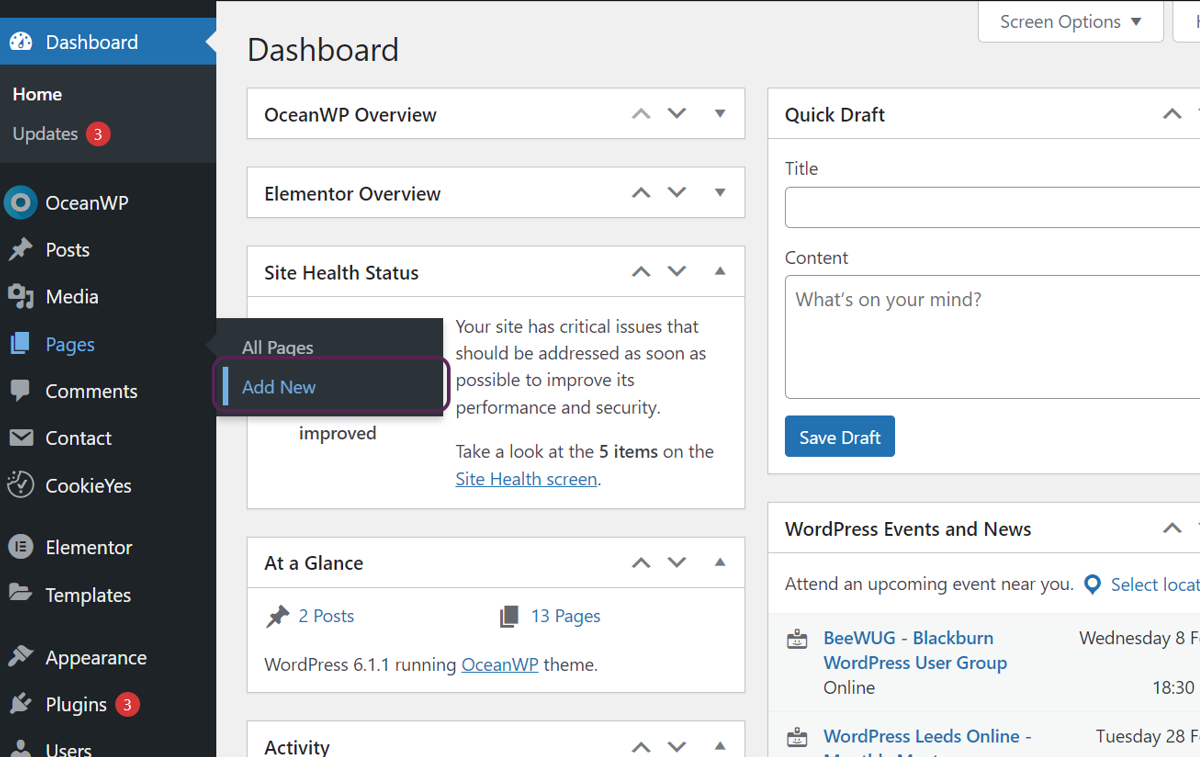
Hover over the ‘Pages’ option and click the ‘Add New’ option that appears.
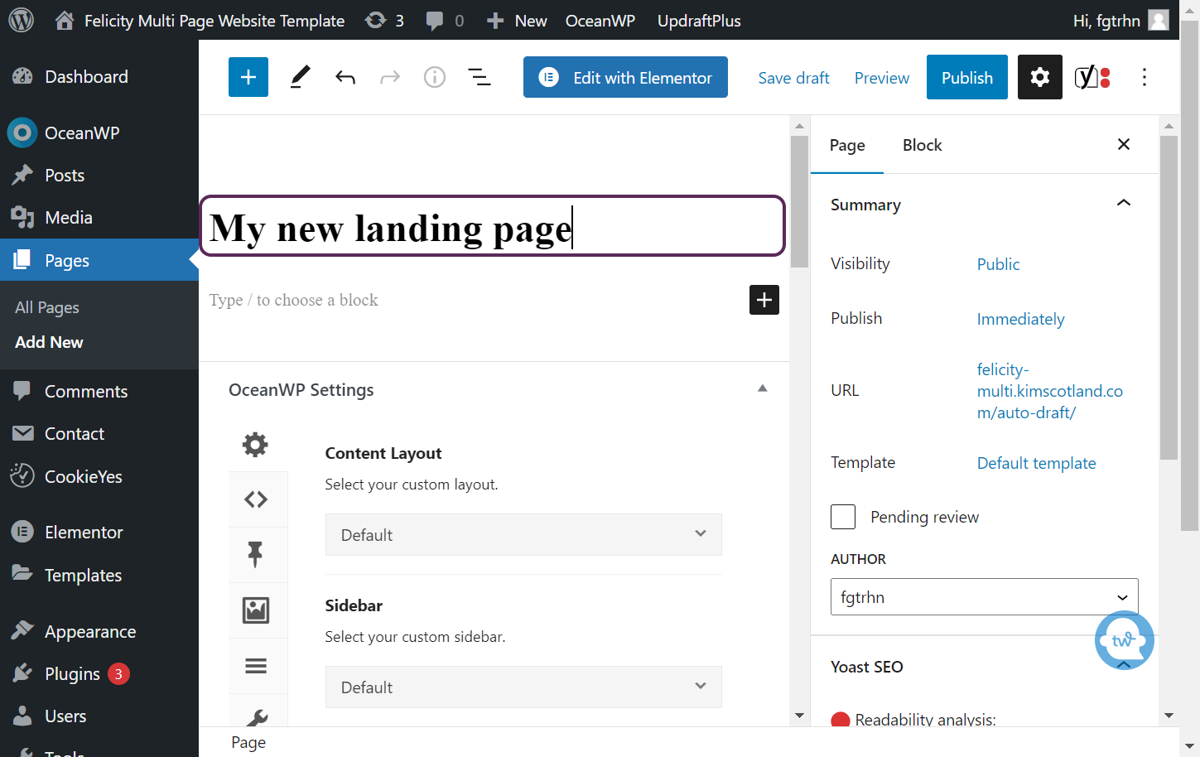
Give your page a title
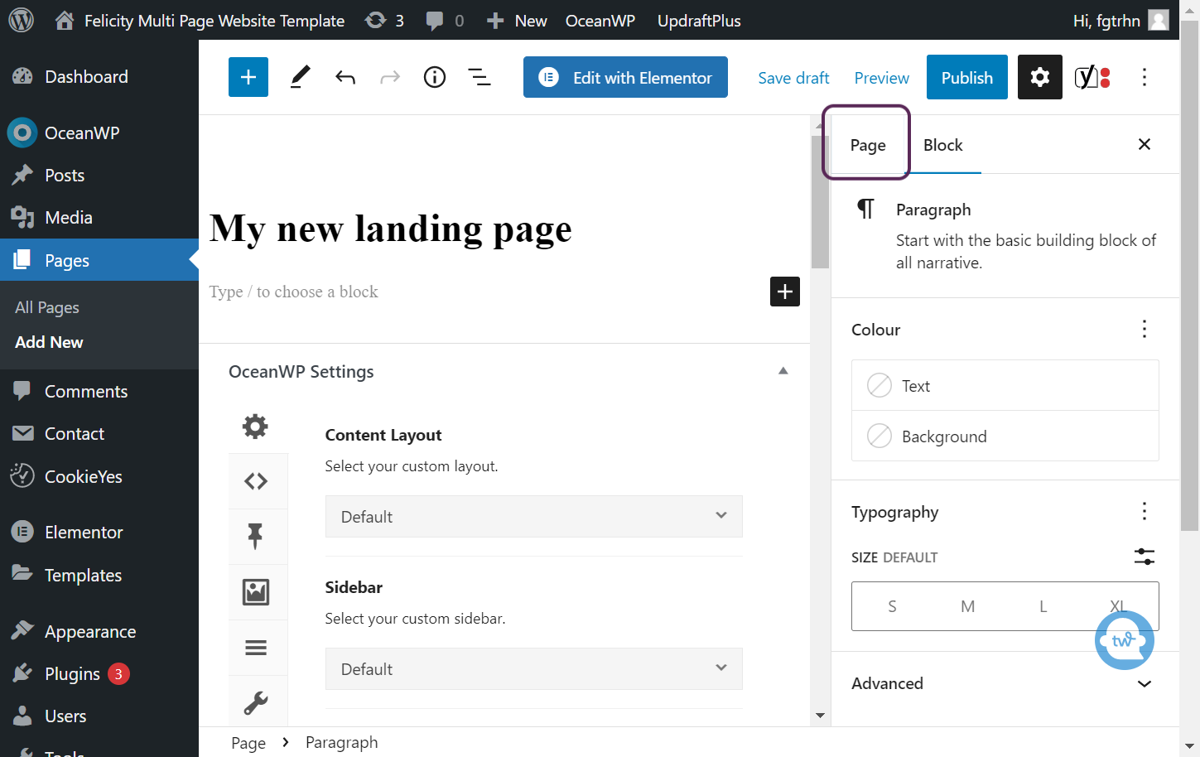
Click on the ‘Page’ tab in the settings panel
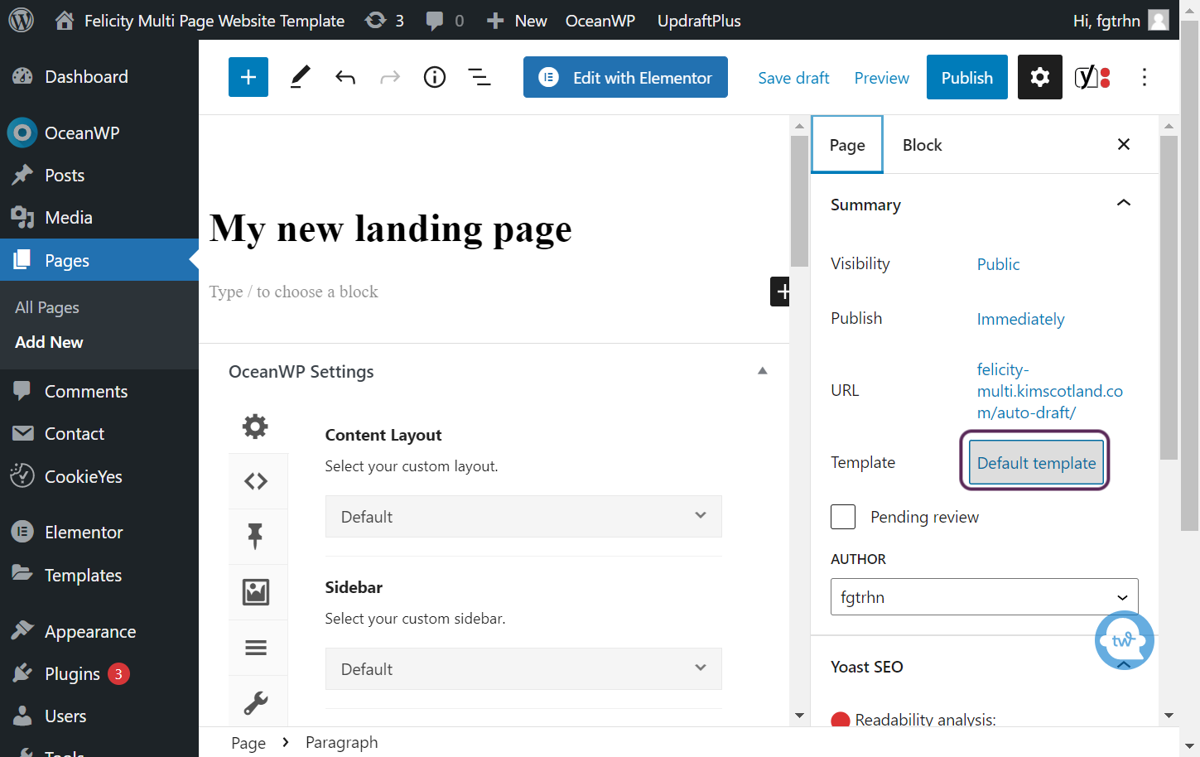
Click on the ‘Template’ drop down list
Select the ‘Elementor Canvas’ option.
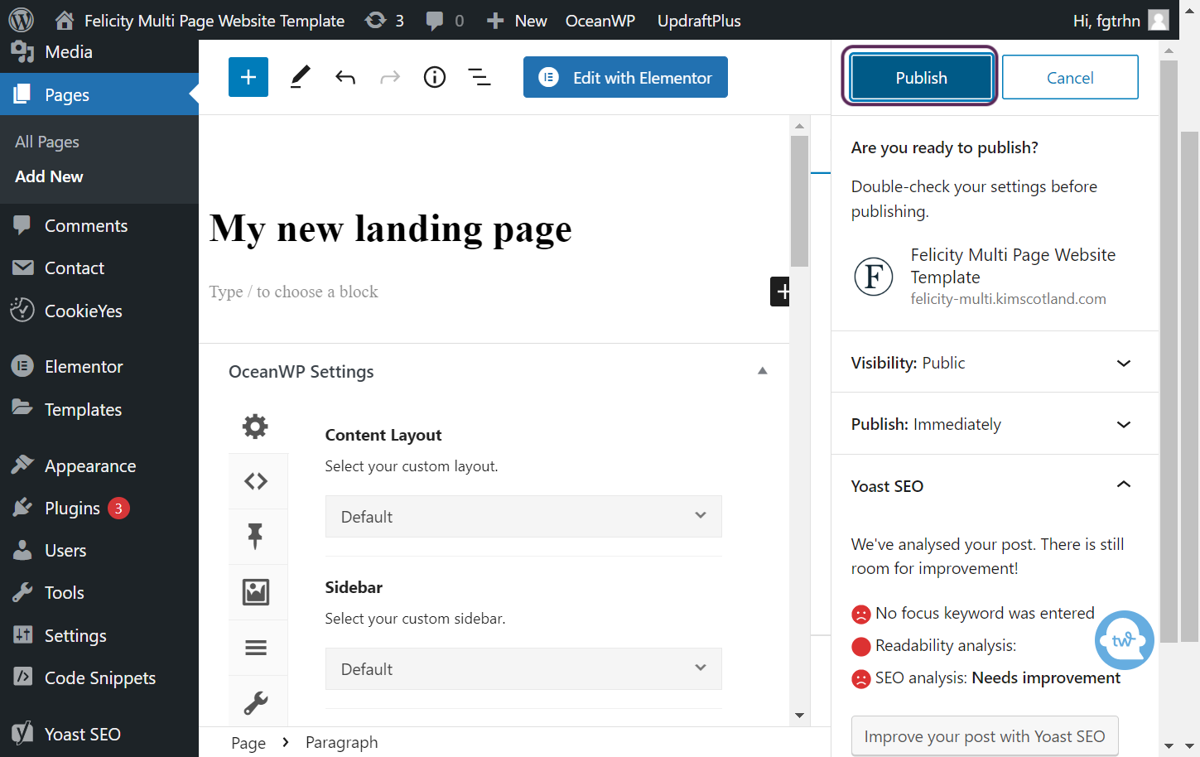
Click on the ‘Publish’ button.
You may need to click on the Publish button a second time if you’re asked to confirm.
Click on the ‘Edit with Elementor’ button.
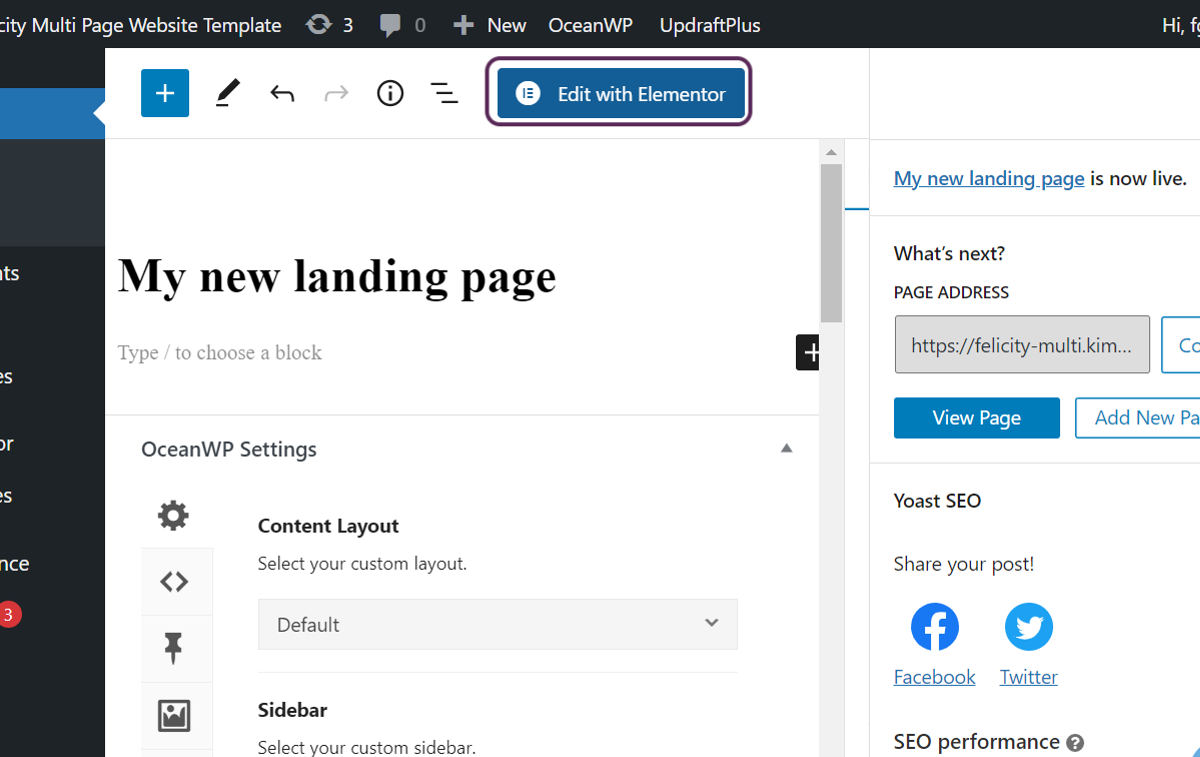
The Elementor editor should load. Notice that it doesn’t have the website header or footer.
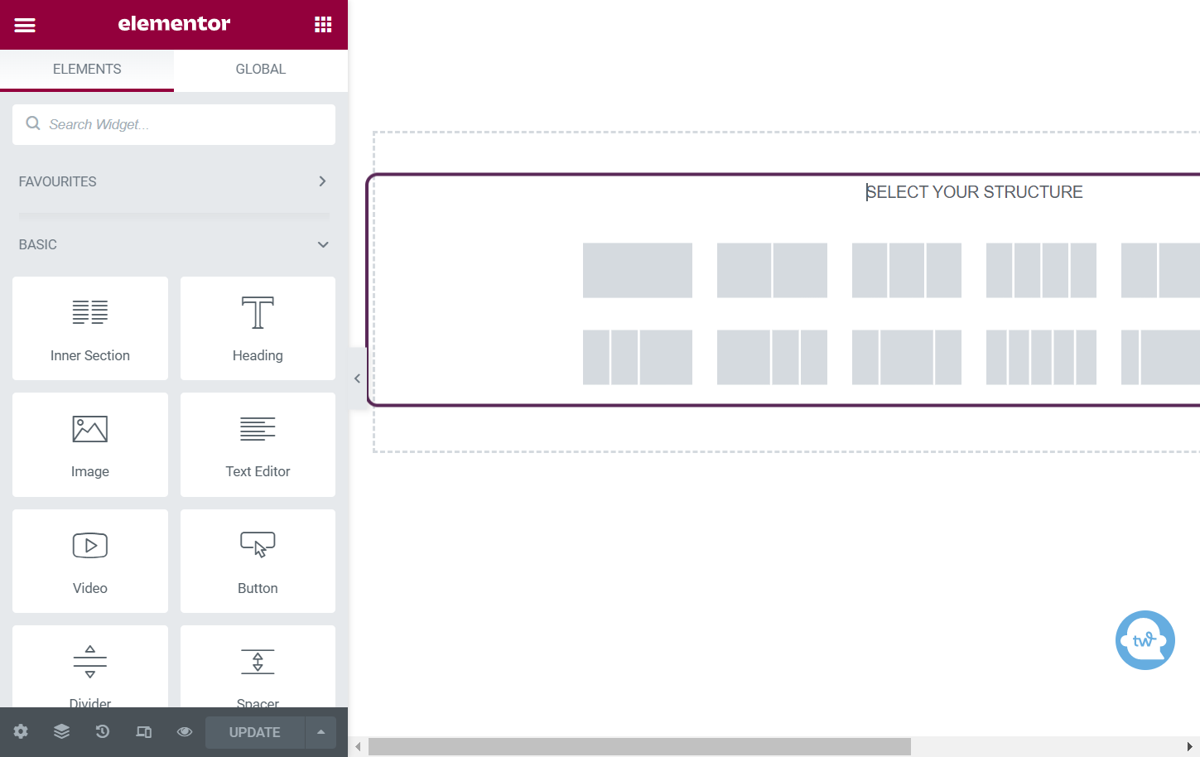
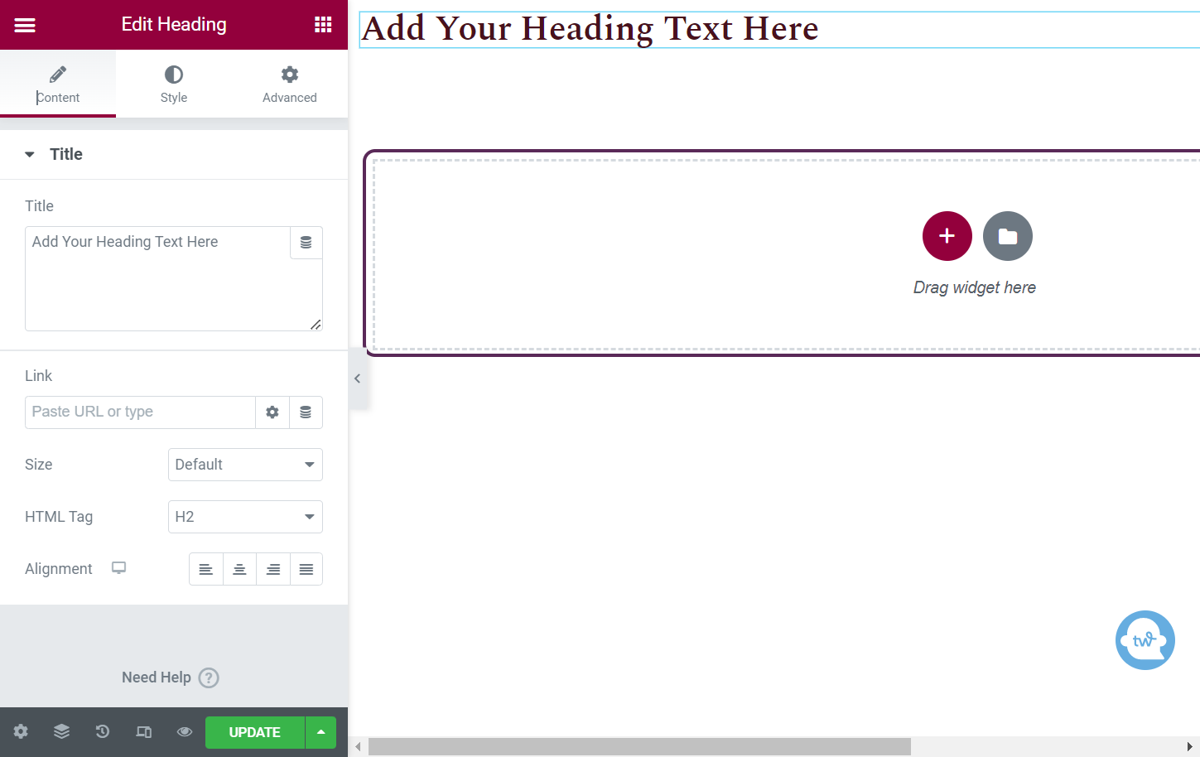
You can now start building your page by dragging and dropping elements from the Elementor options panel.

Elementor Canvas vs Elementor Landing Page
You might have noticed that there was an option for ‘Elementor Landing’ page within the ‘Templates’ drop down list from step 4.
Pages built using the Elementor landing page template option are not considered to be pages by WordPress. They are custom post types. So you couldn’t create one and then set it as your homepage.
There is one scenario that I can think of where this could be a problem which is if you were redesigning your site without the use of a staging environment.
When I’m building websites in this situation I will often create a simple landing page to tell visitors a new site is coming soon and set it as the homepage. It will direct them to sign up for the site owner’s email list, call scheduler or whatever else my client wants them to do in the meantime.
I couldn’t use the landing page template option in this case.
But if you use the Elementor Canvas option you’re covering all your bases.
How to create a landing page in WordPress using Elementor – summary
- Elementor is a popular drag and drop page builder plugin for WordPress.
- You can use the free version or buy the pro version.
- Landing pages are different to regular web pages because they don’t show the website header and footer.
- You can create a landing page in Elementor in 8 simple steps.
- We used the Elementor Canvas option instead of the Landing Page template option because Landing pages aren’t classed as pages by WordPress, they’re custom post types which brings some restrictions.
You may also enjoy:
4 top reasons to use web design templates in your business
How to install Elementor templates in 3 simple steps