

Knowing how to take a WordPress backup is important for any WordPress website owner. It’s by no means an exciting task but, trust me, you’ll be grateful for it if anything does go wrong. Whether it’s a dodgy plugin or you accidentally delete something, having a backup means you can easily revert to a recent version of your website.
This post contains affiliate links. If you buy through these links I will get a small commission at no extra cost to you. I only recommend products that I use and love or products that I want to try.
Why are backups important?
No one likes to think about bad things happening to their website but you need to be prepared just in case.
Taking regular backups protects you from losing pictures, blog posts and pages if your site is hacked or your hosting provider has any issues.
For example, when installing a new theme on my other site, I accidentally reset the theme options after 2 or 3 hours work. I was overconfident and didn’t back up beforehand, because I thought I knew what I was doing. Ever since then I always take a backup before making major changes. The moral of the story? Don’t be like me – backup your files.
How often should you take a WordPress Backup?
There’s no right or wrong answer here. It depends on how often you make changes to your website.
- If you’re updating content daily, consider a daily backup.
- If you update weekly or monthly, then weekly or monthly backups should suffice.
- Always take a backup before making major updates, such as updating themes, plugins, or your WordPress version. While updates are crucial for security, having a backup ensures you can restore your site if something goes wrong.
How to take a WordPress backup?
So now I’ve banged on about how important backups are, we get to the juicy bit. I’m going to give you a brief overview of different ways to back up your WordPress website.
In an ideal world you’d make use of both of these options, having your host take regular automated backups as well as taking them yourself will make sure you have all bases covered.
1. Backup through your hosting provider
A good hosting provider will offer automated backups, but you should check to check how often and how easy they are to for you to access them.
Siteground takes daily automated backups and lets you restore them with a few clicks of a button.
Backup using a plugin
UpdraftPlus is my preferred WordPress backup plugin. It lets you to schedule daily, weekly, or monthly backups and store them in locations like Google Drive, Dropbox, or Amazon S3. The free version automates backups but doesn’t let you choose an exact backup time but it’s never been an issue for me.
UpdraftPlus is one of 9 plugins I recommend all business owners install on their websites.
Having a copy of your backup, separate from your website, makes sure that even if your website crashes, your files and data are safe and recoverable.
Taking a backup with UpdraftPlus
Here is a step-by-step guide to installing the WordPress backup plugin UpdraftPlus and then how to use it to take a backup with it.
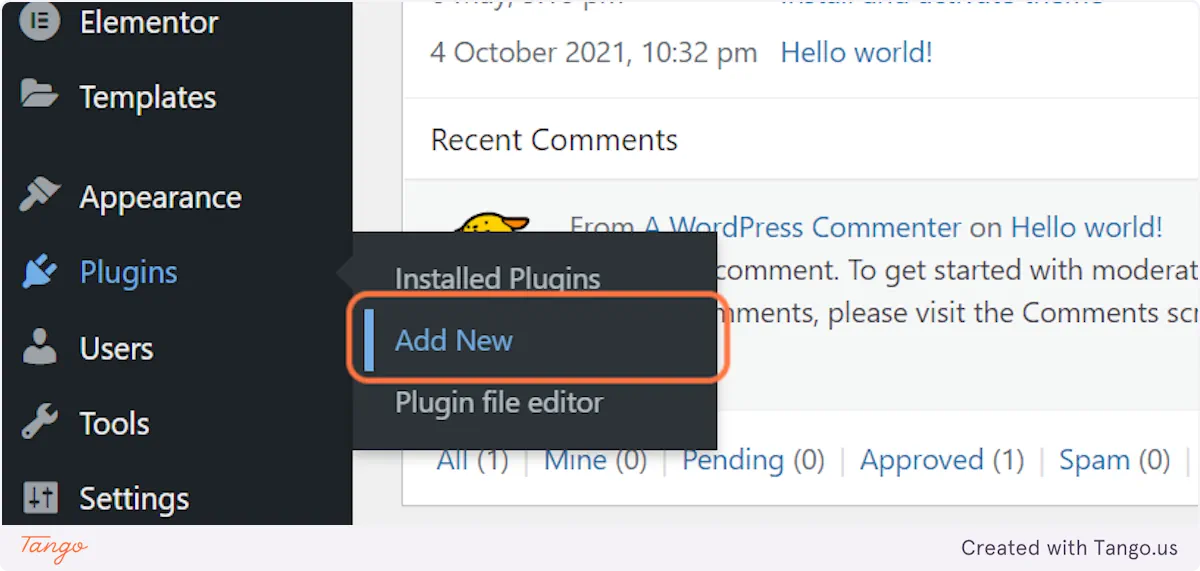
Login to your WordPress dashboard. Hover over the Plugins menu and click on Add New
Type UpdraftPlus
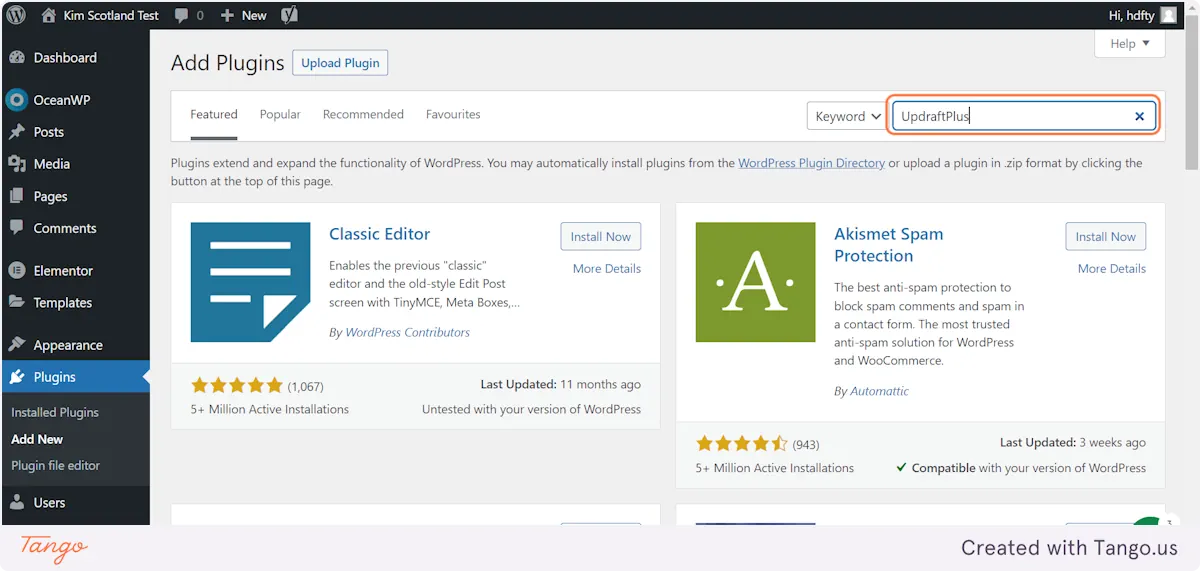
Click on Install then Activate against UpdraftPlus WordPress Backup Plugin

Hover over the UpdraftPlus menu at the top of the screen and click on Settings
Choose a place where you want any backups to be stored.

They’re likely to be too big for an email attachment so I recommend you don’t choose that option. Here I’m going to demonstrate using Google Drive.
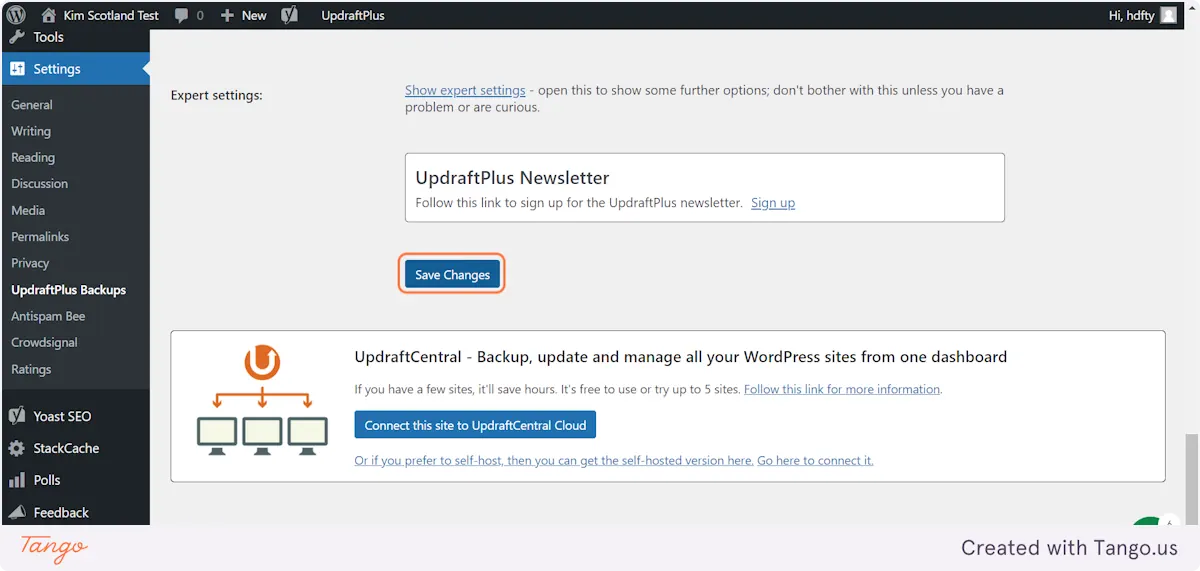
Click on Save Changes
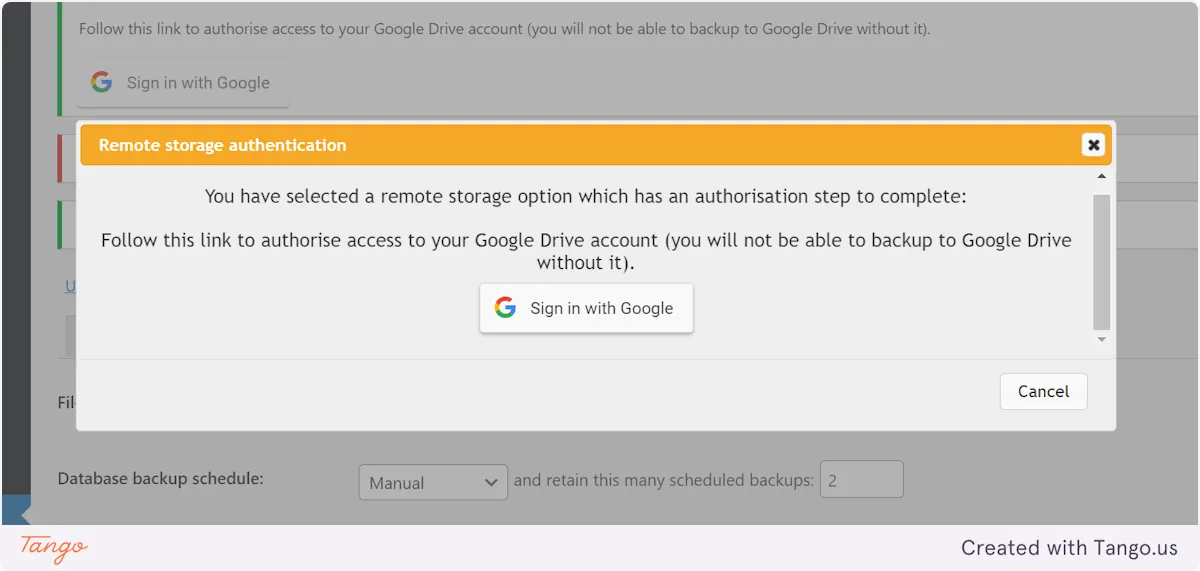
Click on Sign in with Google
Choose your Google account
Click on Allow

Click on Complete setup
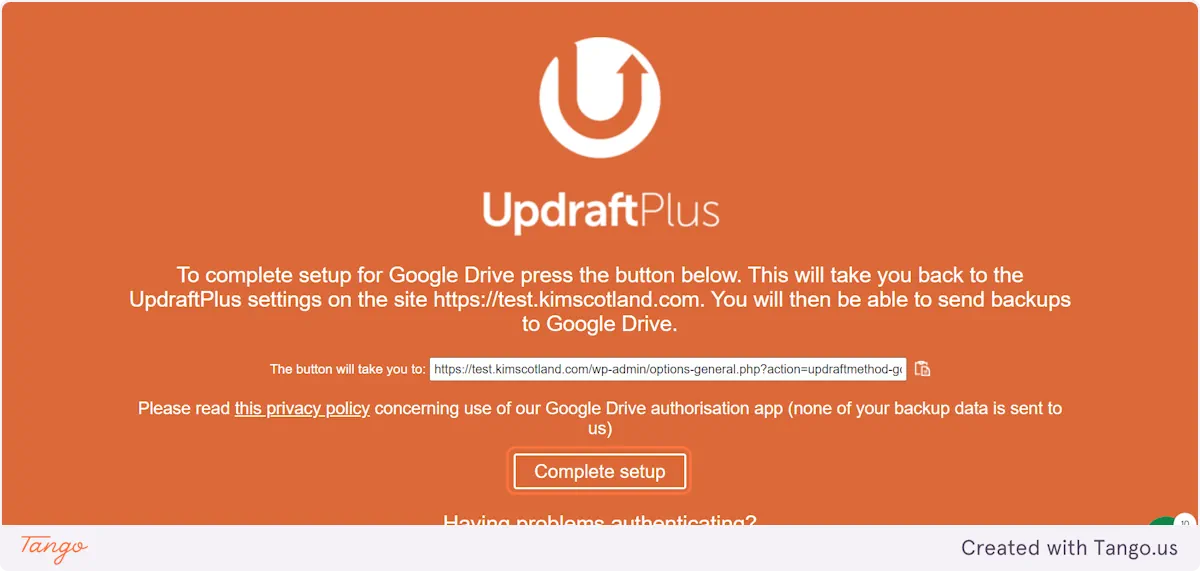
Click on Backup / Restore

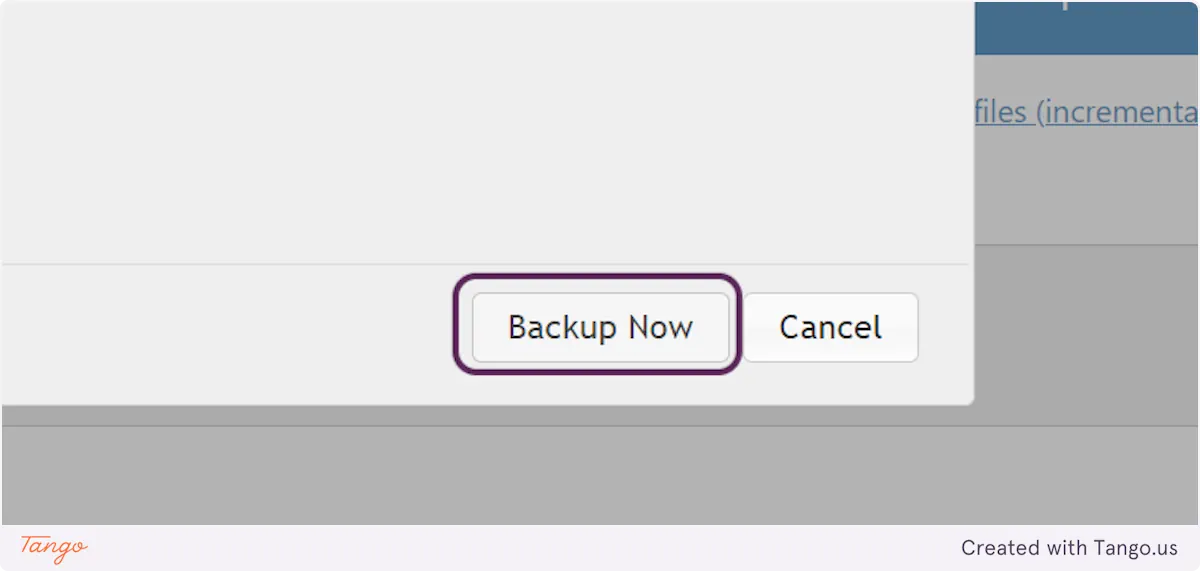
Click on Backup Now

Click on Backup Now
You’ll the backup in a folder named UpdraftPlus in the location (Google Drive, DropBox etc.) you chose to back up to.
Testing your backup
Taking backups is great but you need to test them, if you can.
If your hosting provider includes a staging site as part of your plan it’s a good idea to periodically restore a backup to a staging side to check everything works as it should. This should prevent any unpleasant surprises if and when you need to restore your site from a backup if the worst should happen.
Summary
Taking regular WordPress backups is important to make sure you don’t lose any content if something happens to your website.
Whether you choose to rely on your hosts backups or you take them yourself as well (recommended) the most important thing is to backup consistently. For a lot of people, using a plugin like UpdraftPlus, demonstrated above, is the easiest way to automate this boring but vital task.
Need Ongoing Support?
Taking and managing WordPress backups is just one part of keeping your website in top condition. With my website care plans, you get peace of mind knowing that your site is regularly backed up, updated, and scanned for security threats by an expert. I’ll handle them for you, so you can focus on serving your clients and doing the money making tasks in your business. Learn more about my care plans here.
You may also enjoy:
Website speed tests – where do you start?