If you’ve heard about WordPress, it’s very likely that you’ve heard about plugins. I call them the jewel in the WordPress crown. But what is a plugin in WordPress? And what makes them so great? Read on to find out.
Estimated reading time: 8 minutes
1. What are plugins in WordPress?
WordPress plugins are basically apps that you add to your WordPress website to add extra features to it. They can be as small as adding social media sharing icons to your blog posts or as big as adding a shop or membership area to your website.
This is what makes WordPress such a flexible platform. with over 50, 000 plugins available (last time I checked) if you can think of a feature for your website, it’s highly likely that you’ll be able to find a plugin (or combination of plugins) that does it.
2. Free vs Premium plugins
Some plugins are free, and some cost money. The ones that cost money might be a one-off payment or some will require a subscription. It depends on where you get the plugin from and what it does as to how much you’ll pay.
Some plugins have free and paid versions.
For example the very popular Yoast SEO plugin has a basic free version, which has everything you need to get started with SEO. As you become more familiar with SEO and focus more on it for lead generation you might decide that the cost of the premium version of Yoast SEO is worth the £99 a year fee.
Want website hints and advice straight into your inbox every week?
Join my email list today and you’ll get my very best tips direct every week and also be the first to know when new offers and discounts go live.
3. Where to download WordPress plugins
Free WordPress plugins are available through the WordPress dashboard or you can download them straight from the developer’s website.
To install a WordPress plugin via the WordPress dashboard
Navigate to the Add New Plugins screen
Hover over the Plugins option in the main menu and click the ‘Add New’ option from the menu that appears.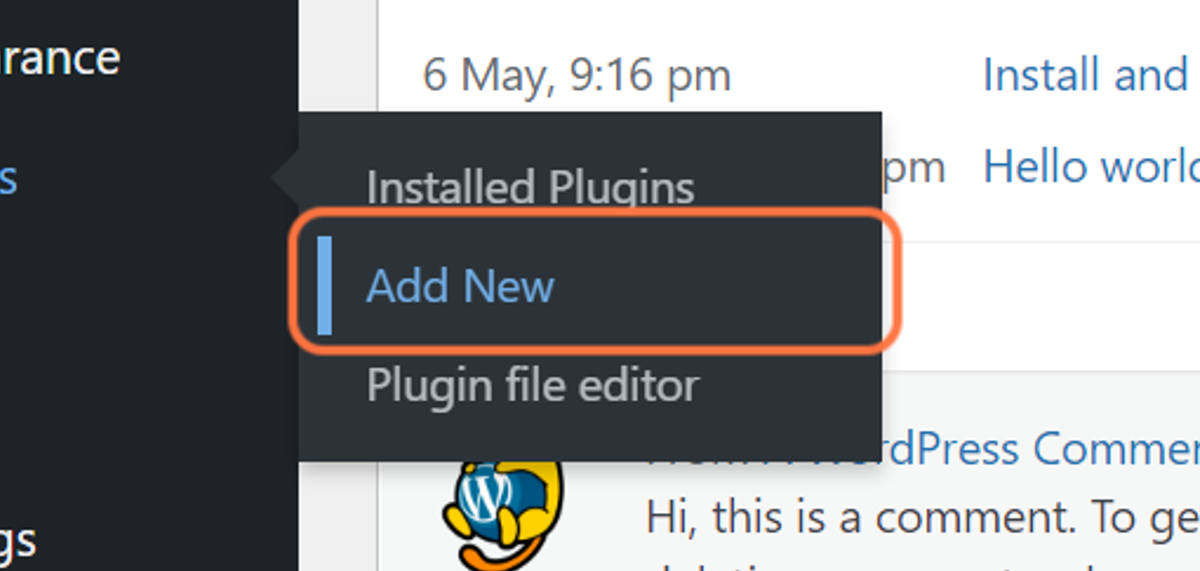
Search for the plugin to install
Type the name of the plugin you want to install in the search box.
The search function on this screen isn’t great, so I would advise that you do your research to find which plugin to install before you come to this screen. Type the name of the plugin you want to install as accurately as possible.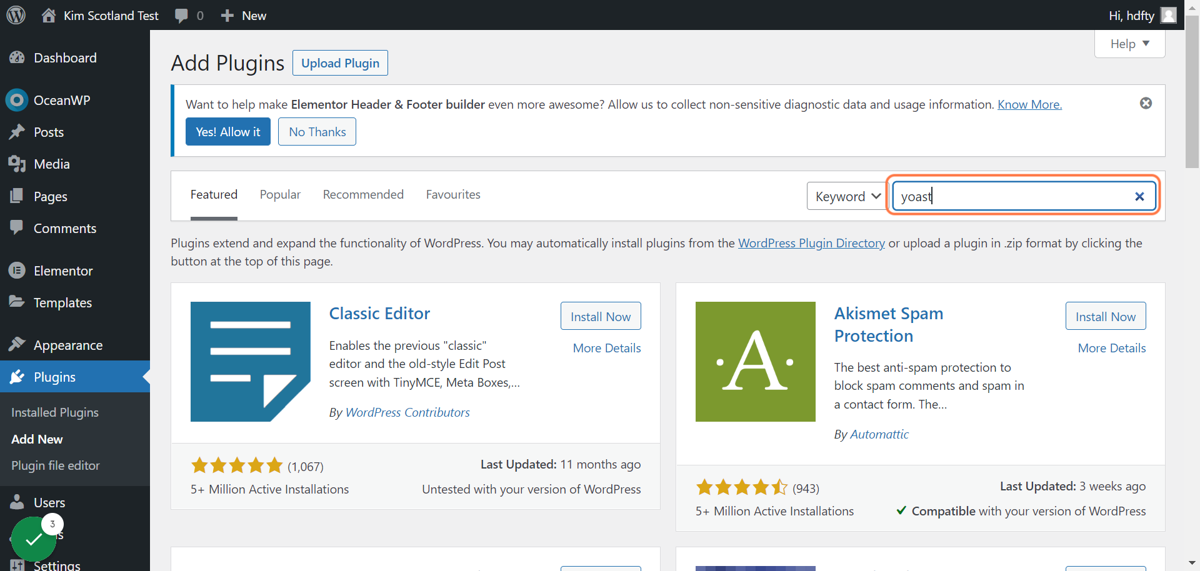
Install and activate your plugin
When the plugin you want to install is found, click the ‘Install’ button then the ‘Activate’ button when it appears.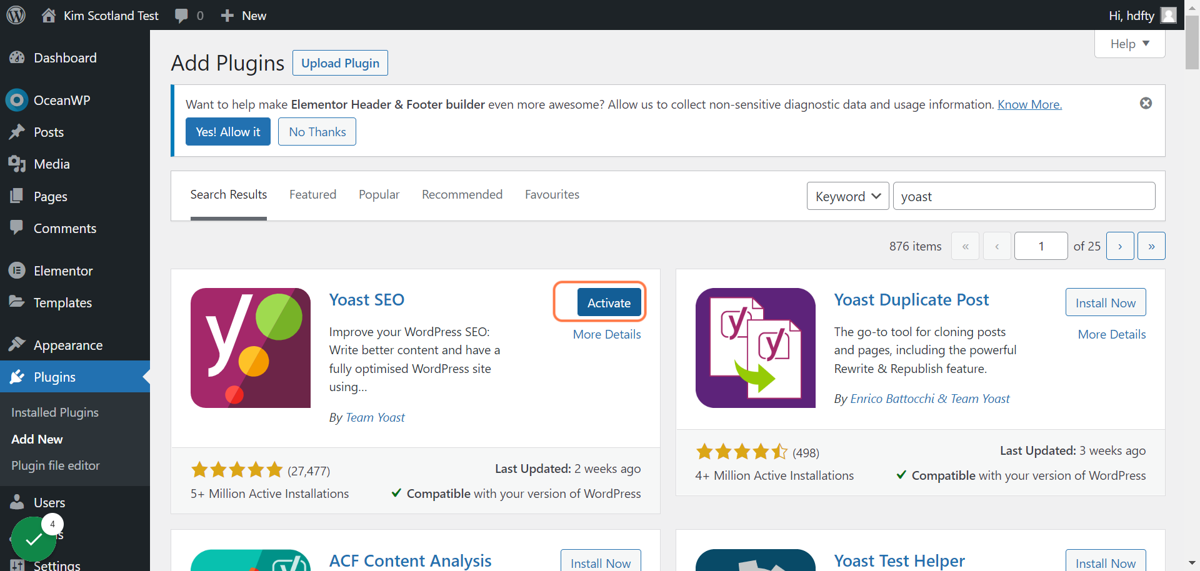
Set up your plugin
Some plugins like Antispam Bee, won’t need any additional set up once it’s been installed and activated. Some plugins, like the Yoast SEO plugin will need some additional set up. Most plugins which do need additional set up will prompt you once you’ve installed the plugin.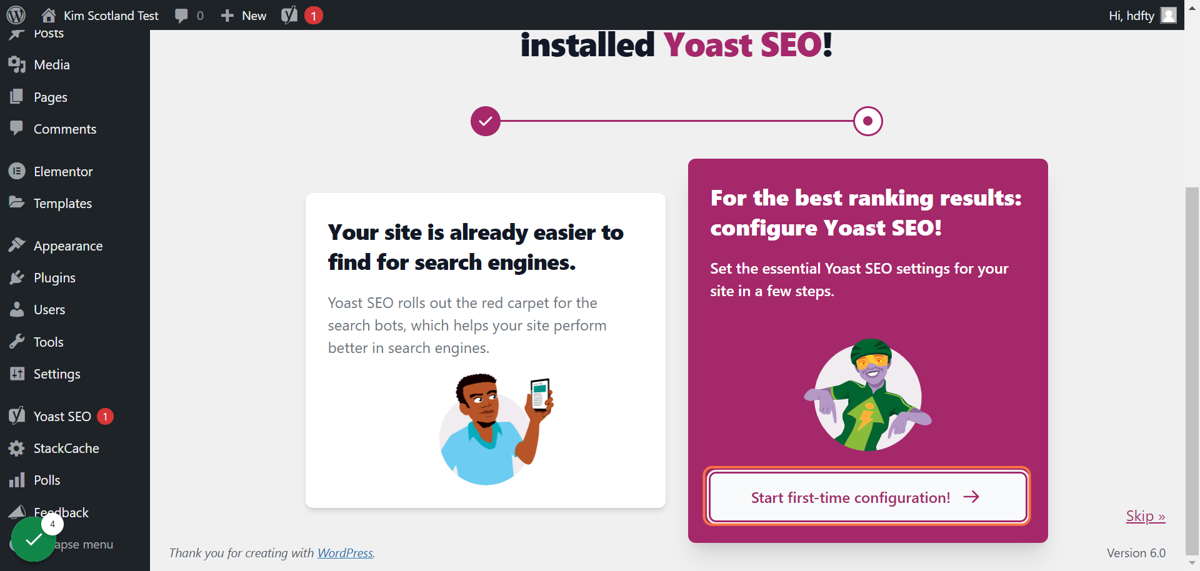
4. How do you know if a WordPress plugin is any good?
It’s not always easy to tell if the plugin you’re thinking about using is actually going to do what you want it to. Sometimes you just have to give a go and see, or if it’s a paid for plugin, get in touch with the company who make it and ask.
I often get in touch with companies to see if it’s going to do what I want or sometimes I ask how it works with other plugins.
For free plugins there are a few things I look for before I commit to downloading it.
- What’s the star rating?
- How many active installs are there of the plugin?
- When was it last updated?
- Does it work with my version of WordPress?
Star rating
Star ratings can be a bit of a red herring because usually people only review a plugin if it’s amazing or terrible. I mean, how often do you rate a plugin that was average?
But it will give you a rough idea of how good it is, along with the other things to look for.
Active Installations
How many people actually have this plugin installed and running on this website? If it’s a terrible plugin, that number is going to be quite low.
BUT it might also be that it’s very new, or niche, so don’t use any of these questions in isolation. Use them altogether for a bigger picture.
If there are millions of active installations, I think it’s safe to say that it’s a decent plugin.
Last updated
Good plugin developers will regularly review the code that goes into creating the plugin. They should be looking to make it more secure, more efficient and to add new features (if they’re relevant). I would be wary of installing a plugin that hasn’t been updated in the last 6 months. It cold mean that no-one is actively looking after that plugin anymore which could leave it vulnerable to hackers.
Does it work with my version of WordPress?
You should always be running the latest version of WordPress, so that you always have the latest security, performance and new feature updates.
If a plugin says it’s incompatible with your version of WordPress, it’s another reason to give it a wide berth. It might be that no-one’s looking after that plugin anymore which is why it hasn’t been tested with your version of WordPress. It might also be that the plugin developer is working on making it compatible.
Either way, don’t install a plugin on your site that hasn’t been tested with your version of WordPress.
5. Try to keep the number of installed plugins as low as possible
Just because you can install ALL the plugins, doesn’t mean you should. The higher the number of plugins you have installed on your site, the higher the potential for you to have problems.
A high number of plugins (I would class as over 25) is often linked to slow loading websites. And the potential for plugin conflicts (where plugins don’t work when they’re installed on the same site) is higher too.
This is for a couple of reasons.
Not all plugins are equal
WordPress is what we call open source software. It means that the code that makes WordPress what it is, is freely available for the world to see. This means that anyone can create themes and plugins to work with it.
This also means that not all plugins are created equally. Some will be created by businesses with teams of developers whose job it is to make it better.
But some might have been created by hobby coders who may not have the time to update them as much as they would like.
It’s impossible to test all possible combinations of plugins
I mentioned earlier that the last time I checked, there were over 50k plugins in existence. It would be almost impossible to test every potential combination of WordPress plugins.
What is a plugin in WordPress: summary
- WordPress plugins are apps that you can install on your WordPress website to add extra features like social media sharing icons, shops or even membership areas.
- Some plugins are free, others cost to download and install on your site
- You can download free plugins via the WordPress dashboard or paid plugins are available to download from the websites of the companies who create them.
- Before installing a plugin on your WordPress website I recommend that you look at star ratings, the number of active installations, how recently it was updated and whether it’s compatible with your version of WordPress
- I recommend that you try to keep the number of plugins on your website to a minimum, to avoid any problems with your site’s loading times or to prevent plugin conflicts.
You may also enjoy:
What is WordPress? Why use it for your business website
The Best WordPress hosting for beginners
4 top reasons to use web design templates for your business